Install the Kapture extension
Install from the Chrome Web Store
The easiest way to install Kapture — no developer mode required.
Add to ChromeManual installation
Manual installation requires developer mode and may show occasional warnings about developer-mode extensions.
1
Download the extension
Clone or download the Kapture repository from GitHub to get the extension files.
2
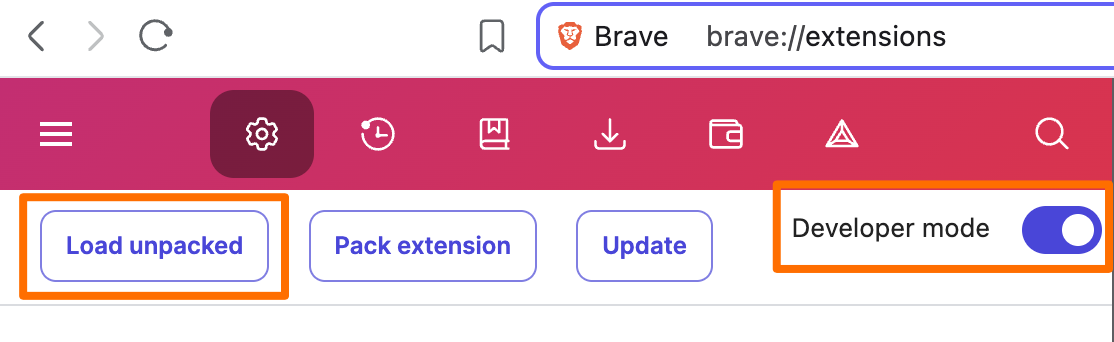
Load it into your browser
- Open
chrome://extensions/in your browser. - Enable Developer mode with the toggle in the top-right.
- Click Load unpacked and select the extracted folder (download) or the
/extensionfolder (cloned repo).
3
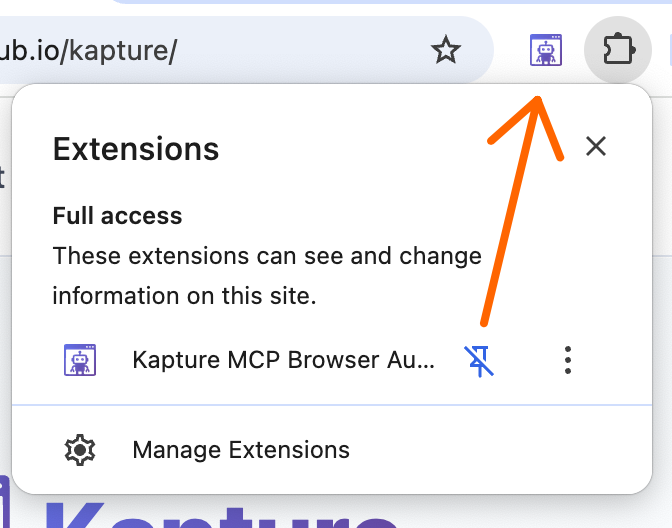
Pin the extension
Click the puzzle-piece icon in the toolbar, then the pin next to Kapture MCP Browser Automation.